
setup_bitwarden
Table of Contents
How to sign up for and setup BitWarden
For password sharing, we use a version hosted directly with Pearing for our passwords. This requires a couple of changes to the default settings to work. Please follow the steps listed here to get BitWarden setup.
Create an Account
- Browse to https://bw.habitatlacrosse.org/ and click “Create account” at the bottom.
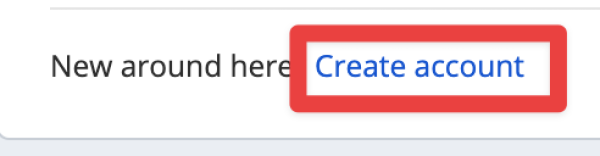
- Use your Habitat email address to create your account.
- When choosing the Master Password be sure to choose a complex password that you can remember. There is NO WAY to gain access to your passwords if this is forgotten. You can set a password hint to help if you do forget, but if that doesn't help, you will not be able to access your passwords.
- Click “Create account.”
- You will receive an email to verify your email address. It may go to spam. Please find this email and click the verify button to verify your address.
- Once this has been completed, please let Tage or Kahya know you have an account and we can add you to the Habitat password vault.
- Once you have been added to the Habitat vault, you will receive an email for you to confirm your acceptance to join the vault. Please click the button to accept.
- Once you have accepted the invite, please follow up with Tage or Kahya to approve you one final time.
Setup BitWarden in Your Browser
- Head on over to https://bitwarden.com/download/ and download the browser plugin for the web browser that you use.
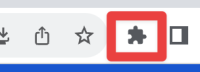
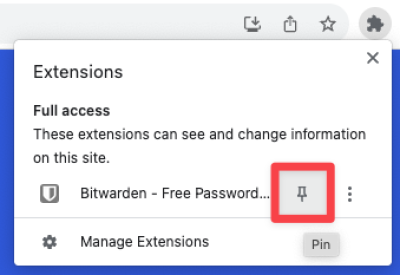
- Once you have downloaded the extension for your browser, be sure to click on the puzzle piece in Chrome or Edge to show BitWarden all the time.
- Click the pin to pin the plugin to the browser bar.
- Click on the BitWarden icon, then enter your email address, check the remember email button, and then click on the “Logging in on: bitwarden.com link to change the server.
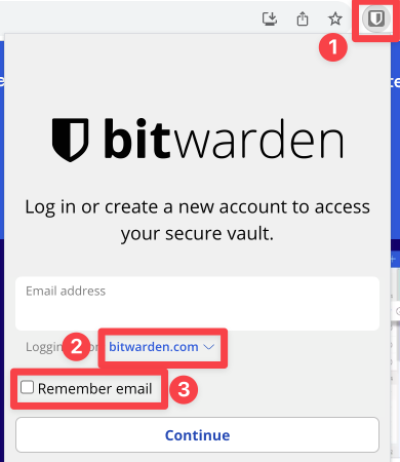
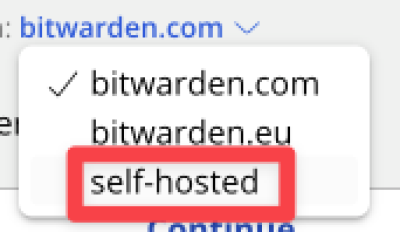
- Select “self-hosted” from the drop down.
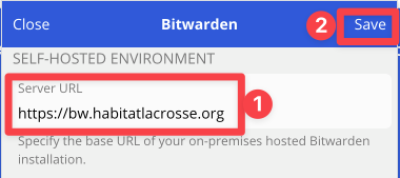
- Enter https://bw.habitatlacrosse.org in the “Server URL” box, and then click “Save.”
- Click Continue on the main screen.
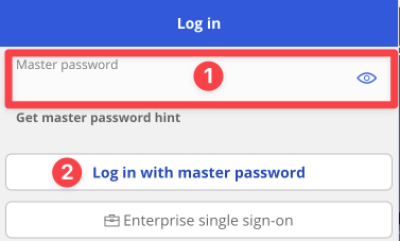
- Enter your master password and click “log in with master password.”
- Once the vault displays, click on the “Settings” button at the bottom.

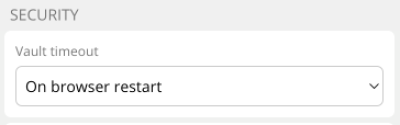
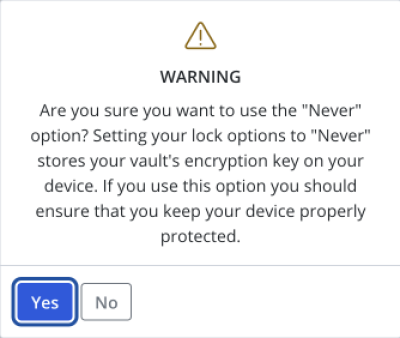
- Under “Security” select “Never” from the Vault timeout dropdown list.
- Click “Yes” on the warning screen.
- Your BitWarden is now setup.
For Admins
Add user to Company Vault
- Navigate to https://bw.habitatlacrosse.org and login.
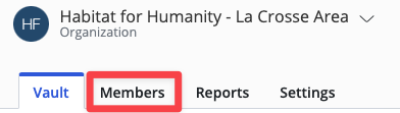
- Click on “Organizations” at the top.

- Click on “Members.”
- Click on ”+ Invite member.“
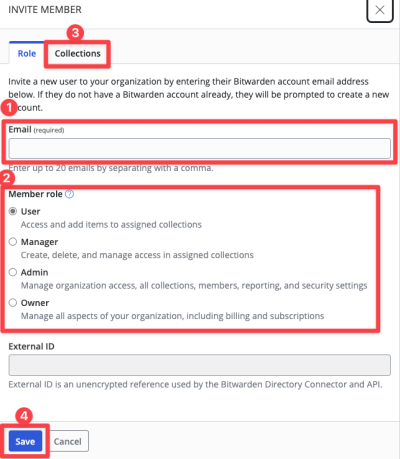
- Enter the email address of the new user.
- Select the role of the user. This will usually be “User.”
- Click on the “Collections” tab at the top and assign the user to the vaults desired.
- Click “Save.”
- The user will get an email that they have to click on a link to accept the invite.
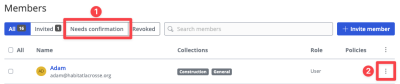
- Once the user has accepted, refresh the members tab and click on the “Needs confirmation” tab to approve them.
- Click on the three dots on the right and approve the user.
Remove user from Company Vault
- Navigate to https://bw.habitatlacrosse.org and login.
- Click on “Organizations” at the top.
- Click on “Members.”
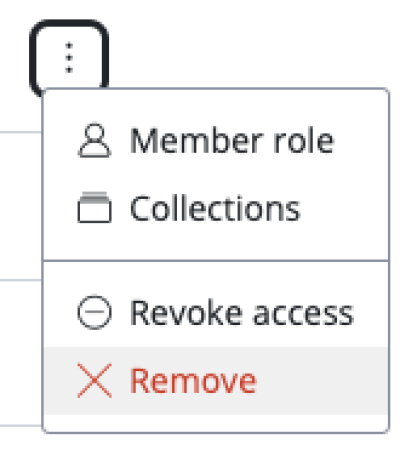
- Click the three dots on the right of the user you wish to remove, and choose the “Remove” option.
setup_bitwarden.txt · Last modified: by admin